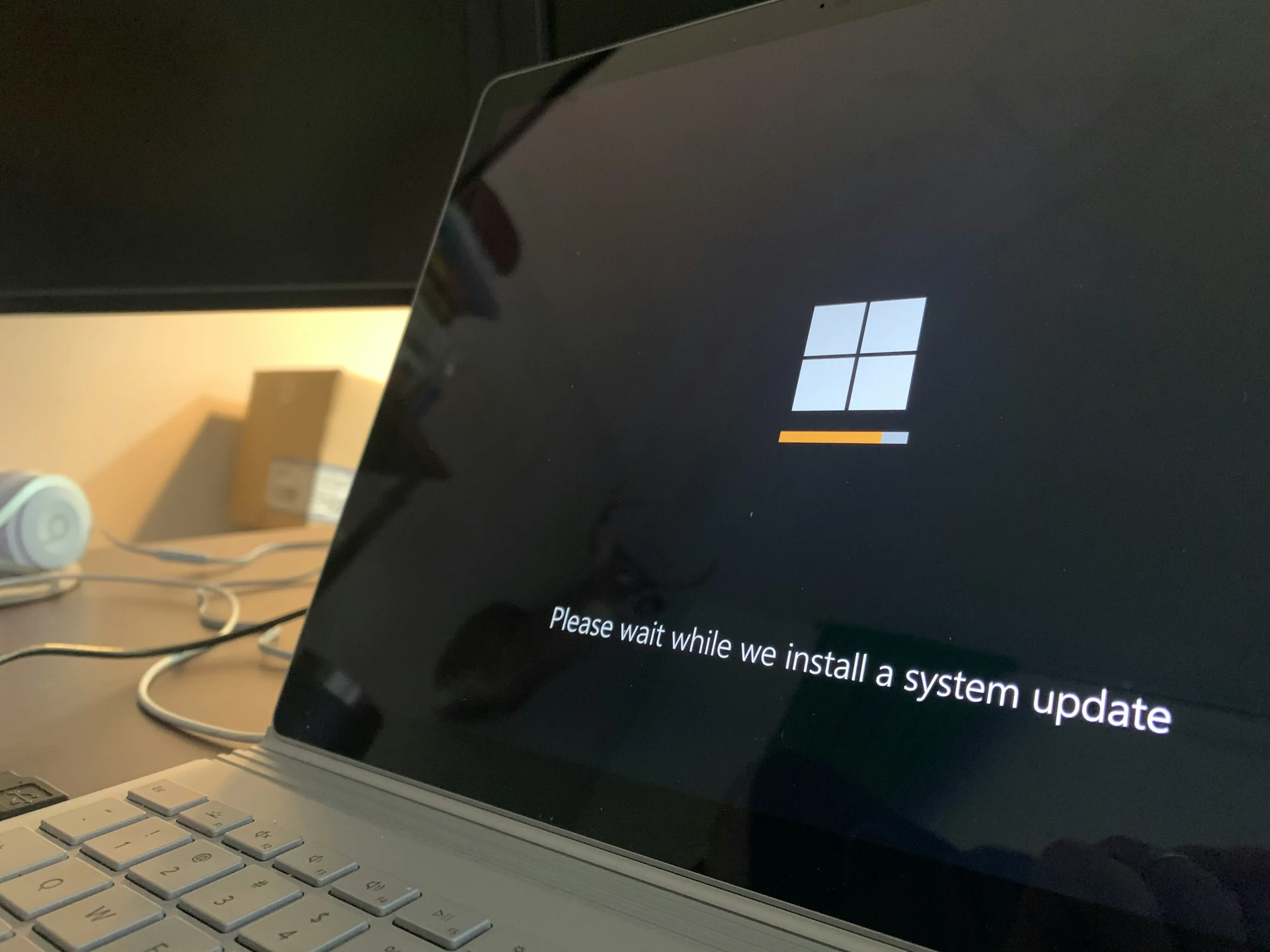

Upgrading your operating system can feel like a routine task, but even in 2026, it’s something that needs careful planning, especially for businesses. While most bugs in recent versions of Windows have been addressed, unmanaged upgrades can still cause serious headaches.
Windows Updates Are Not Always “Automatic-Friendly”
Microsoft continues to push updates aggressively. Closing a reminder doesn’t always stop an upgrade, particularly if your system has automatic updates enabled. While recommended updates are generally useful – fixing security flaws, bugs, and improving performance – a full OS upgrade is more complex and can impact your hardware, software, and email systems.
Many business users have experienced:
- Compatibility issues – some applications may not run correctly on the latest Windows build.
- Network disruptions – upgrading multiple devices without coordination can temporarily halt productivity.
- Data access problems – accounts, shared drives, or email may stop syncing properly.
A system upgrade should be a planned, monitored process, not something left to chance.
Planning a Windows Upgrade
Here’s what businesses should do before upgrading:
- Audit your hardware and software – check that all machines, servers, and essential software are compatible with the new version.
- Schedule the upgrade – plan a time when downtime will have minimal impact on operations.
- Back up everything – ensure local and cloud backups are current in case files are lost during the upgrade.
- Test first – if possible, upgrade one machine first to identify any potential problems.
- Communicate with staff – let employees know what to expect, especially if the upgrade will change workflows or system access.
Tools to Manage Upgrades
Even in 2026, there are tools that can help manage upgrades and give you control over when updates occur. Applications like Windows Update for Business, Microsoft Endpoint Manager, or third-party utilities allow IT teams to schedule updates, delay non-critical upgrades, and prevent accidental system-wide changes.
For personal or smaller business setups, utilities similar to the old Never 10 (which prevented automatic Windows 10 upgrades) can help avoid surprise upgrades until you’re ready.
Windows Store Restrictions
Another consideration for business users is application management. In older versions of Windows 10, IT administrators could block the Windows Store to prevent staff from downloading apps that could slow down systems. In recent builds, this feature is no longer available on standard Windows editions, meaning businesses must rely on education, policies, or upgraded enterprise licenses to control app installations.
Key Takeaways
- A Windows upgrade is not just another update – it can affect your network, productivity, and security.
- Automatic updates can start without warning, so always plan and schedule upgrades.
- Test the upgrade process on one device first, back up data, and communicate with staff.
- Explore business-grade tools to control update schedules and device management.
The best way to avoid downtime and frustration is to work closely with your IT support team. They can help ensure upgrades are smooth, systems remain compatible, and your business continues running without disruption.


0 Comments