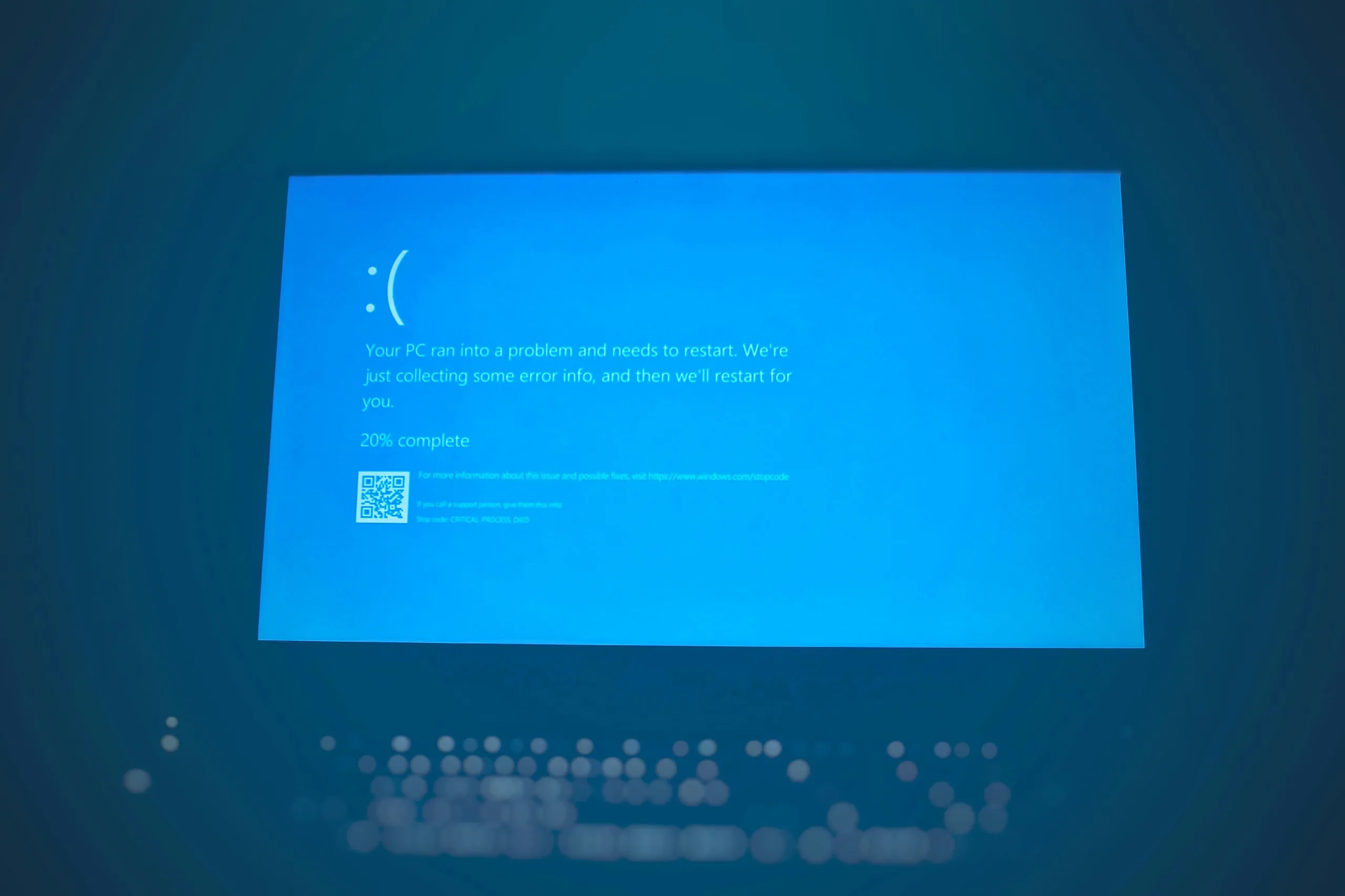

Technology can seem obvious to tech-savvy users, but for many people, simple issues can be confusing. Understanding common computer problems and solutions can save time, reduce frustration, and help your computer run smoothly.
Even small settings or overlooked details can cause major headaches. Here are some of the most frequent support requests we encounter and how to resolve them effectively.
My Laptop Won’t Connect to WiFi
A laptop that won’t connect to a WiFi network is one of the most common problems. Often, the solution is straightforward:
- Check that your WiFi is enabled. Most laptops have a dedicated WiFi key or a function key combination (e.g., Fn + F2). A small icon or blue light usually indicates it’s active.
- Ensure you are within range of the WiFi network.
- Verify that the correct network name (SSID) is selected and that the password is entered correctly.
- Restart your laptop and, if necessary, your router to reset the connection.
These simple steps resolve most connectivity issues.
Applications Open but Don’t Appear on Screen
Sometimes Word, Excel, or PowerPoint appears to open but isn’t visible. Common causes include:
- Multiple monitors: If a second screen is connected but turned off, applications may open on that inactive display. Check your display settings (Windows: Settings > System > Display) to move the application to your main monitor.
- Minimised windows: Look for the application in the taskbar and restore it.
- Off-screen windows: Press
Alt + Tabto switch between open applications orWindows + Arrow Keysto move windows back to the visible screen.
These steps will help you locate and restore applications quickly.
My Computer Has Slowed Down
Slow performance is another frequent issue. Causes include:
- Windows updates: Windows often updates automatically on “Patch Tuesday” (the second Tuesday of the month), running in the background. This can temporarily slow down your computer.
- Background processes: Check Task Manager (
Ctrl + Shift + Esc) for programs consuming high CPU, memory, or disk usage. Close unnecessary apps. - Startup programs: Disable unused startup programs via Task Manager > Startup to improve boot speed.
- Disk space and maintenance: Ensure you have enough free space and run disk cleanup tools regularly.
Following these steps will restore speed and keep your computer running efficiently.
The Takeaway
While technology can be frustrating, many problems are easier to fix than they appear. Understanding common computer problems and solutions allows you to troubleshoot issues quickly and efficiently.
Sometimes, all it takes is knowing which settings to check or simple maintenance steps to prevent recurring problems. By applying these practical tips, you can save time, reduce stress, and get the most out of your computer.



0 Comments