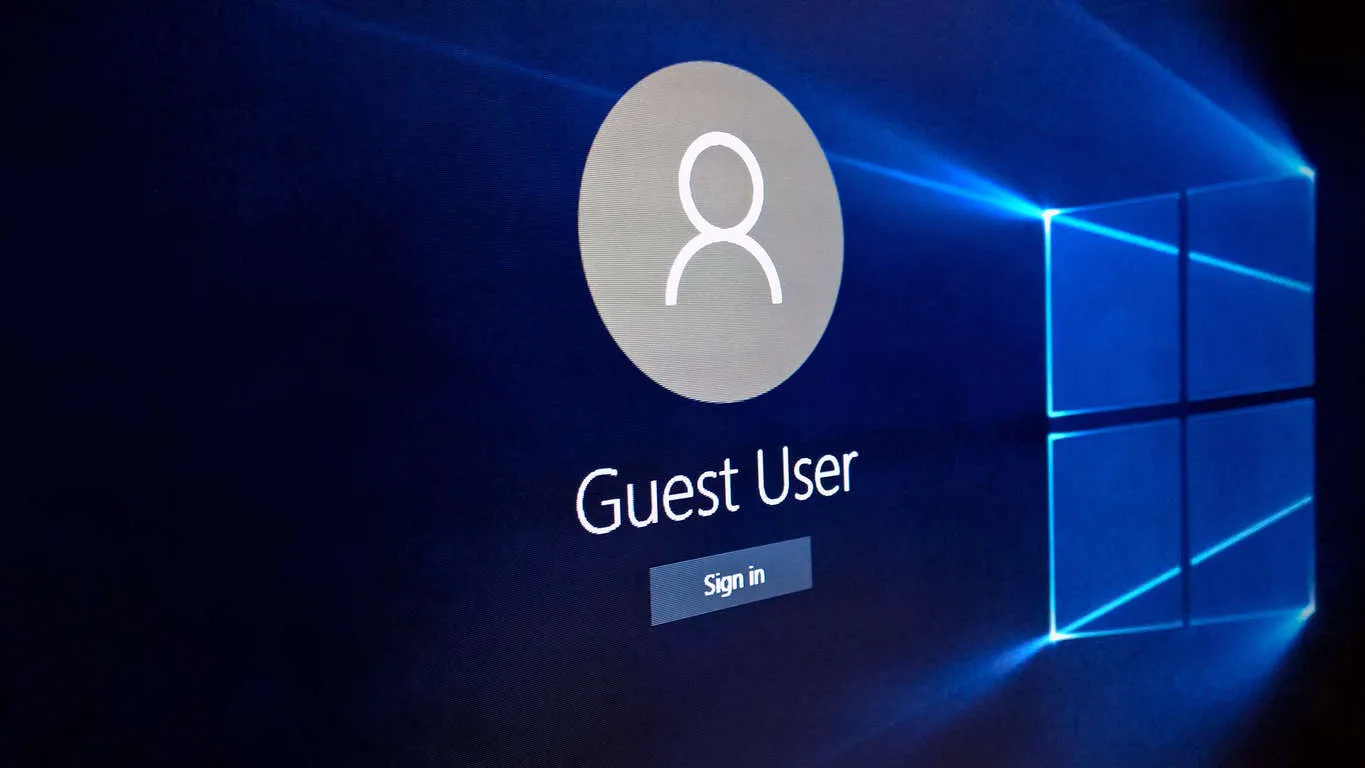

What is a user account?
A user account allows you to sign into Windows. You can either be granted standard permission or administrator access. Administrator accounts allow you to make changes to system settings, as well as managing other local accounts. Standard accounts can do anything you would need to do, the only thing they can’t do is make changes to the system settings. If Via Wire setup your user account, you will sign in using your Microsoft account. This is also another way to sign into Windows, your access levels will be set during the setup of the account by your administrator, as this is done through the admin portal.
Benefits of using individual accounts
- You can set access control per user. For instance, certain users may need to access the “Accounts” folder whereas others may not need that information. Therefore you can set restrictions for each user account.
- Employees are able to sign into any device within the organisation, using their individual account
- Files will be kept separate between users, unless SharePoint file sharing is in use throughout the organisation
- The risk of potential account loss is minimised. This usually happens when an unhappy employee leaves the company, or even when a user unintentionally shares the password with the wrong person – anyone who has access is able to change the password and lock everybody else out. By using an individual account the possibility of this occurring is much lower
- You are less likely to slip up on a phishing email/scam. As only one person would receive this email the chance of the user following through with the scam if much lower, and even if they did, only one user would be affected – not multiple
Switching user account on Windows 10
1. If you are already signed in, navigate to “Start”. (Windows logo). If not, go to step 5.
2. Select the user name – shown below
3. You will then get the option to “Switch user”, select this.
4. You will then be able to sign in as a different user – you do not need to follow the steps below this if you were previously signed in as a different user.
5. If you are not already signed in as a user, select “Other user”
6. You will then need to enter the email address linked with the account you wish to sign into, you will then be asked for the password – enter this too.
7. You should then be signed in as a separate user – if not, raise a ticket here.
Need a new account set up? Raise a support ticket here.
We would highly appreciate if you took the time to leave feedback below, if you found this article helpful please select “Yes”.
If you feel this could be improved, please select “No”, and if you have the time, please let us know what we can do to make our articles more beneficial to you 🙂
If you would like to suggest an improvement for an article, or suggest a new one, please use the form in the following link: https://www.viawire.net/kb-suggestions/



0 Comments